

domdom
Active member
- Messages
- 96
- Reaction score
- 222
- Points
- 33
Hello Windicers!
Not many people know that we can actually create our own custom dice bot tailored to our favorite strategies. Fortunately, Windice provides a full-featured interface for this through the official Windice API https://windice.org/docsapi
In this thread, I’d like to share how to build a simple desktop dice bot using Python. I’ve structured this guide to be super straightforward and easy to digest, especially for beginners who have never touched programming before.
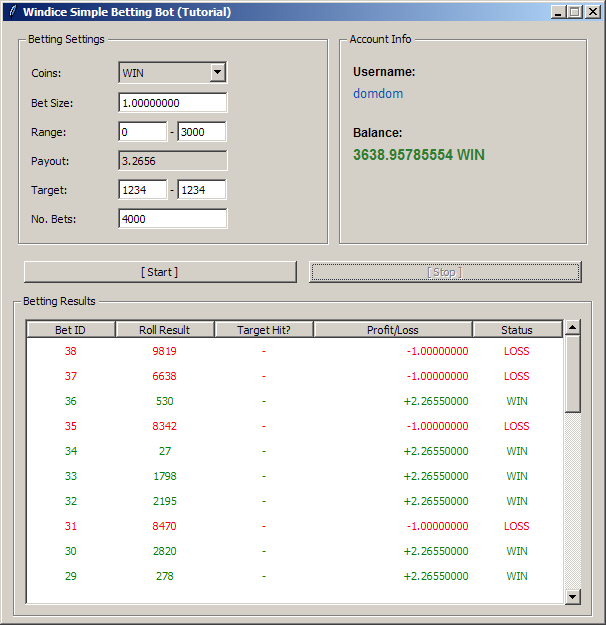
Instead of just imagining it, here is a screenshot of the completed bot application
Have you ever joined Mod Siopaw's or Beky’s Rollhunt or Forum Challenge where you are required to hit a specific target number with a required payout?
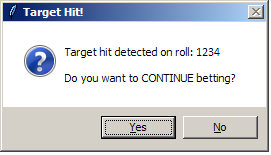 You no longer have to monitor the dice manually roll-by-roll. Once you hit your target, you can easily share your winning bet link via the website's "My Bets" section just like usual!
- Account Info: Displays your Username and live Balance. The balance updates automatically so you can track your funds effortlessly.
- Betting Settings:
Understanding the Code Structure (3 Main Sections)
To make reading the code easier for beginners, the Python script is organized into 3 primary sections from top to bottom:
1. Library Imports (Top)
Here we import the necessary built-in and external Python modules:
This section acts as the "brain" of the bot, containing functions triggered by user actions or automated loops:
The final part builds the visual interface before initiating root.mainloop() :
Full Python Source Code
(See first reply below)
Setup & How to Run
Link to download mybot : https://files.catbox.moe/npwj1k.zip
The zip file contains 3 files: mybot.py, mybot-win.wav, and compile.bat. Password to open the zip file : windice.io
Disclaimer: This bot was created purely for educational purposes, personal enjoyment, and exploring the Windice API. Only gamble with funds you can afford to lose, and always practice responsible gaming and proper risk management. Use it at your own risk!
Not many people know that we can actually create our own custom dice bot tailored to our favorite strategies. Fortunately, Windice provides a full-featured interface for this through the official Windice API https://windice.org/docsapi
In this thread, I’d like to share how to build a simple desktop dice bot using Python. I’ve structured this guide to be super straightforward and easy to digest, especially for beginners who have never touched programming before.
Instead of just imagining it, here is a screenshot of the completed bot application
Why Build This Simple Bot?
You might be wondering: What is the actual use of a simple bot like this?Have you ever joined Mod Siopaw's or Beky’s Rollhunt or Forum Challenge where you are required to hit a specific target number with a required payout?
- Siopaw Style: Dice hunt the exact number 1234 with a payout of 3x or higher.
- Beky Style: Hunt the number closest to 2000 or hit 2000 (bullseye) , any payout.
- Forum Challenge Style: Hunt lucky numbers like 4444, 7777, or 8888 as many as you can.
- Configure the Range: Enter 0 to 3000 in the Range box. The Payout field will automatically calculate and show 3.265
- Set Your Target: Enter 1234 - 1234 in the Target box.
- Set No. Bets: Enter your desired roll limit, for example, 4000.
- Hit [Start]: Sit back and let the bot run in the background.
Overview & Features
Key Elements Explained:- Account Info: Displays your Username and live Balance. The balance updates automatically so you can track your funds effortlessly.
- Betting Settings:
- Coins: A dropdown menu to select your currency (WIN, USDT, TRX, etc.).
- Bet Size: Your wager amount. The bot includes an Auto Detect Minimum Bet feature, if your input is below the limit, the bot automatically adjusts it to Windice's min. bet size.
- Range, Payout, Target, & No. Bets: Fully customizable to fit your specific dice strategy.
- Safety Lock ([Start] / [Stop] Buttons): Once you click [Start], the Coins dropdown and Bet Size fields are locked to prevent accidental parameter changes mid-session.
- Betting Results: A history table showing every roll. Winning bets (WIN) in green and losses (LOSS) in red for quick visual tracking.
Understanding the Code Structure (3 Main Sections)
To make reading the code easier for beginners, the Python script is organized into 3 primary sections from top to bottom:
1. Library Imports (Top)
Here we import the necessary built-in and external Python modules:
- tkinter & ttk: To build the graphical user interface (GUI).
- requests: To communicate with the Windice API endpoints. Need to install this one later
- winsound: To play .wav sound effects asynchronously without freezing the app.
This section acts as the "brain" of the bot, containing functions triggered by user actions or automated loops:
- User Info Fetcher (get_user_info_api): Sends your API Key (GET /api/user) to retrieve your username and keep your live balance updated.
- Roll API Function (place_roll_api): Handles communication with the Windice server by sending automated dice roll requests
- Payout Function (calculate_payout): Automatically calculates potential multiplier payouts based on your chosen range and the configured house edge.
- Betting Loop (start_betting_loop) & Auto Detect Min Bet: Serves as the core control center that executes bets repeatedly in a separate thread. Within this loop, the bot also handles Auto Detect Min Bet parsing error responses if a bet size is too low, extracting the allowed minimum, and auto correcting the field in the GUI. It checks if a roll hits your target, triggers audio alerts, and opens a confirmation popup to pause or stop the bot
- Audio Notification (play_victory_chime): Smoothly plays the mybot-win.wav sound effect in the background the moment your target number is hit without freezing the app GUI.
The final part builds the visual interface before initiating root.mainloop() :
- Two-Column Layout: Uses frames for a clean look (Left for Betting Settings, Right for Account Info ).
- Form Inputs: Builds the dropdowns, text entries, and labels with aligned column widths.
- Results Treeview: Renders the history table at the bottom with custom color tags.
- Action Buttons: Connects the [Start] and [Stop] buttons directly to the core functions.
Full Python Source Code
(See first reply below)
Setup & How to Run
- Install Python: download the Windows Installer from the official site. https://www.python.org/downloads/
Important: Make sure to check the box "Add Python to PATH" during installation. - Use a Lightweight Text Editor (Recommended: Notepad++):
- Download and install Notepad++ (free & lightweight) https://notepad-plus-plus.org/downloads/
- Open Notepad++, paste the Python code, and save it as mybot.py (ensure the file extension is .py, not .txt).
- Install Requests Library: Open Command Prompt(CMD) on Windows and run:
Code:pip install requests - Audio File Setup: Place your preferred sound file named mybot-win.wav in the exact same folder as mybot.py
- Copy your Windice API Key from https://windice.org/cabinet/settings, then open the API tab, click the copy icon and paste it into your code
- Launch the Bot: Double-click “mybot.py” (or run “python mybot.py” via CMD). pick your Coin, adjust your parameters, and click [Start]
- Open Notepad++, paste the compile.bat code, and save it as compile.bat (see first reply below)
- Double-click compile.bat.
- Once finished, the script will automatically clean up all unnecessary folders, leaving your brand new mybot.exe right there ready to run!
Link to download mybot : https://files.catbox.moe/npwj1k.zip
The zip file contains 3 files: mybot.py, mybot-win.wav, and compile.bat. Password to open the zip file : windice.io
Disclaimer: This bot was created purely for educational purposes, personal enjoyment, and exploring the Windice API. Only gamble with funds you can afford to lose, and always practice responsible gaming and proper risk management. Use it at your own risk!

